
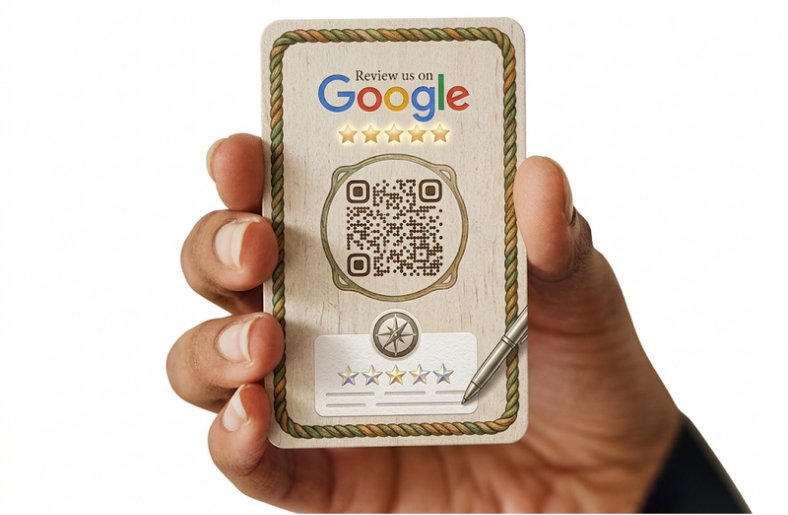
Most happy customers will leave a review if you make it easy. The problem is that Google makes people hunt for your listing, scroll to the right button, and type a rating before they ever see a text box. A google review link removes all of that. One tap or one scan opens the review form for your business, so more people finish what they started. This guide shows you how to create a direct link, turn it into a QR code, shorten it, and share it, all for free.
What Is a Google Review Link?
A google review link is a web address that opens the review box for your Google Business Profile directly. Instead of searching for your business first, the customer lands on a screen where they can pick a star rating and write a comment. You can use the same link in messages, emails, receipts, and on your website.
Why a Direct Google Review Link Works Better
Every extra step costs you reviews. A direct google review link cuts the process to two or three taps, which is especially helpful on mobile, where most reviews are written. It also keeps customers from accidentally reviewing a similar business with a near identical name.
How to Create a Google Review Link
There are three simple ways to get your link. Pick the one that suits you best.
Method 1: Copy It From Your Google Business Profile
This is the easiest route, and I recommend starting here.
- Sign in to the Google account that manages your business profile.
- Search for your business name on Google, or open your profile from Google Maps.
- Look for the option to ask for reviews or get more reviews, and open it.
- Copy the review link shown in the pop up.
Google changes its menus from time to time, so the button name may differ slightly. If you cannot see it, check that you are signed in as an owner or manager of the profile.
Method 2: Build It With Your Place ID
If you cannot find the button, you can build the link yourself. First, find google place id for your business using Google’s Place ID Finder, which is part of the Google Maps Platform documentation. Search your business name, and copy the ID shown. Then add it to this format:
https://search.google.com/local/writereview?placeid=YOUR_PLACE_ID
Replace YOUR_PLACE_ID with your own ID, then open the link in a browser to test it. I am fairly confident this format still works, but please test it before you print or send it to customers.
Method 3: Use a Free Google Review Link Generator
If you prefer not to handle IDs, use a free google review link generator. You enter your business name, pick the right listing, and the tool gives you a ready link. Our own Google Review Link Generator does exactly this, and it only takes a few seconds.
How to Create a Google Review QR Code
A google review qr code is just your review link converted into a scannable square. Customers point their phone camera at it and the review form opens.
Steps to Make Your QR Code
- Copy your direct google review link from any method above.
- Open a free QR code generator and choose the website or URL option.
- Paste your link and generate the code.
- Download the image in a high quality format such as PNG or SVG.
- Scan it yourself with two different phones before printing.
Where to Place Your QR Code
Put it where customers already pause: the checkout counter, table cards, receipts, delivery boxes, appointment cards, and your waiting room. Add a short line such as “Enjoyed your visit? Scan to leave a review.” Keep strong contrast between the code and its background, and print it large enough to scan comfortably.
How to Make a Google Review Short Link
Long links look messy in texts and are hard to type from a printed card. A google review short link solves this. Google often gives you a shorter version when you copy the link from your Business Profile. If yours is long, use a trusted URL shortener or your own branded short domain.
A few cautions apply. Choose a shortener that will not expire your links, because a dead link on printed material is a lost review. Always open the short link yourself before you share it. If you use a QR code, create it from the final link you plan to keep.
How to Share Your Google Review Link
Creating the link is half the job. Customers only leave reviews when they actually see the request.
Review Link for WhatsApp
A review link for whatsapp works well because messages get read quickly. Write something personal, such as: “Hi Sara, thank you for visiting us today. If you enjoyed the service, we would be grateful for a quick review here:” and paste your link. Save this as a quick reply if you use WhatsApp Business, so your team can send it in seconds.
Share Your Google Review Link by SMS and Email
For SMS, keep the message to two or three lines. For email, put the link behind a clear button and mention that honest feedback is welcome. If you want ready made wording, our review request templates guide has messages you can copy.
Add It to Your Website and Invoices
Place the link on your contact page, thank you page, and footer. You can also add it to invoice footers and email signatures. These small reminders work quietly in the background. For more ideas, read our guide on how to get more Google reviews.
Mistakes to Avoid With Google Review Links
- Sending the link to the wrong listing, or to a duplicate profile
- Not testing the link or QR code before printing
- Offering discounts or gifts in exchange for reviews, which Google’s policies do not allow
- Asking only customers you expect to be happy
- Using a short link service that may stop working later
I am confident about the incentive rule in general, but please read Google’s current review policy yourself, since wording changes over time.
Frequently Asked Questions
How do I create a Google review link?
Sign in to your Google Business Profile account, open the option to ask for reviews, and copy the link shown. If you cannot find it, build it with your Place ID or use a free review link generator.
How do I find my Google Place ID?
Use Google’s Place ID Finder, search your business name, and copy the ID that appears. Make sure you pick the correct listing, especially if you have a similar business nearby.
Is a Google review QR code free?
Yes, creating one is free. Your review link is free, and many QR code generators let you download a basic code at no cost. Check that the generator does not make the code expire or force a paid plan to keep it working.
Can I shorten my Google review link?
Yes. Google often gives a shorter link from your Business Profile, and you can also use a URL shortener. Test the short link before sharing, and avoid services that may expire your links.
Can I offer a discount for leaving a Google review?
No, I would not recommend it. Google’s guidelines do not allow reviews in exchange for rewards, and breaking the rules can lead to reviews being removed. Ask honestly and let customers write what they think.
Final Thoughts
A good review link is a small tool with a big effect. Create your link, test it, turn it into a QR code, and place it wherever customers already are. Then send it consistently after every good experience. Over time, those simple habits build a stronger and more trusted profile.